See the workflow in one glance.
Sarenica is a four-step flow: track on Windows, add context, observe trends, and ask Hydrogen to explain changes.

The product is the sequence
The product is easiest to understand when capture, enrichment, observation, and interpretation stay connected.
The Windows app collects desktop signals locally so your first baseline starts with real work, not a guess.
Wearables and sync are optional. They add context later instead of blocking the first useful workflow.
Use trends, comparisons, and coverage checks to see whether a shift is real before asking why.
Hydrogen works on top of the baseline so answers stay grounded in real windows and repeated changes.
The UI should make the workflow obvious
Trend views, comparisons, and setup checkpoints should show where the user is in the story without overload.
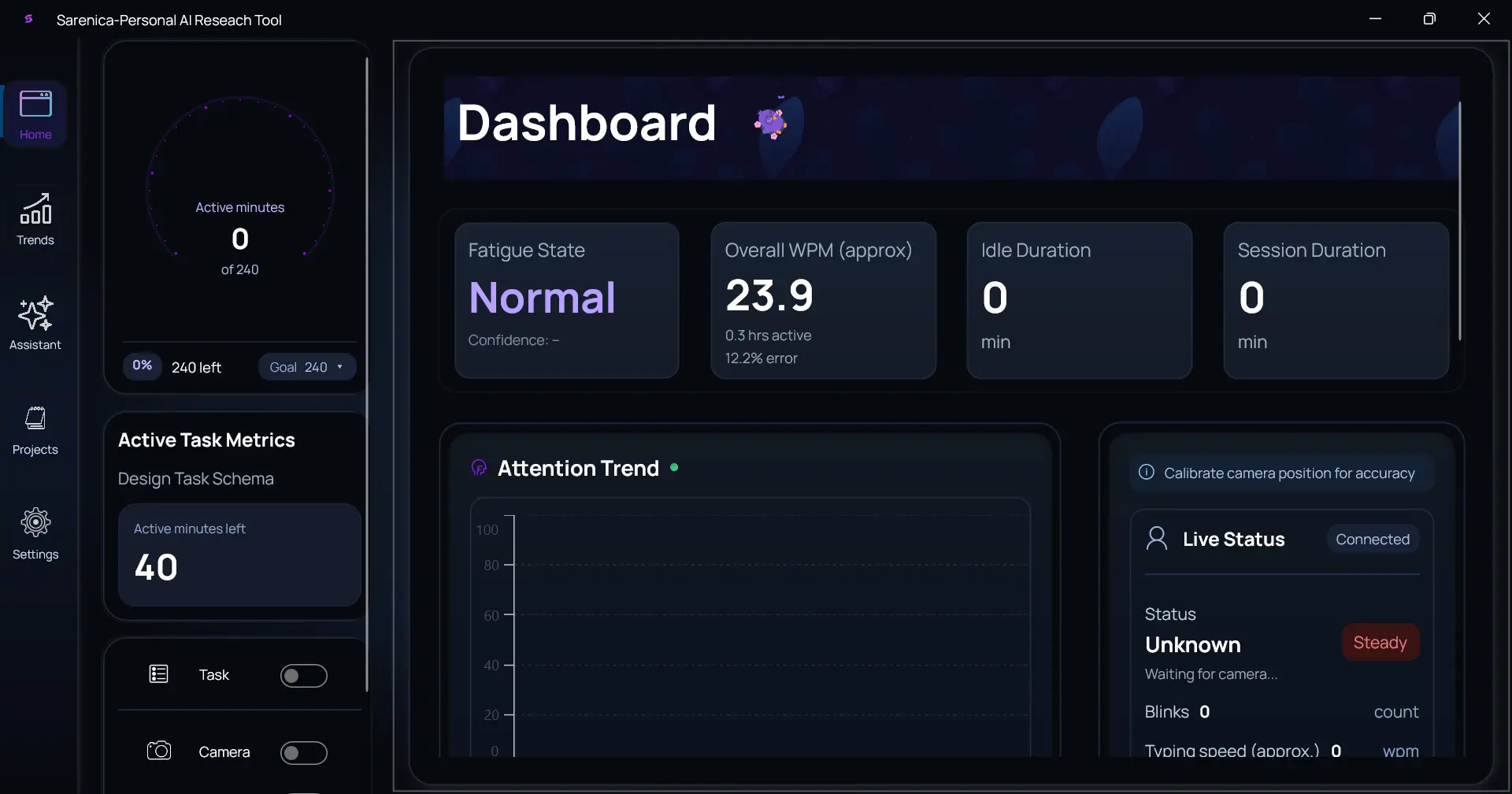
See what the Windows app collects
Real product areas from the desktop app. Install first to see your own patterns.
Real-Time Data Collection
Real desktop app interface
Personal data blurred for privacy
Check whether a workday is being captured cleanly before you ask Hydrogen to interpret it.
- +Energy state bands
- +Live WPM and error rate
- +Blink detection patterns
- +Session duration tracking
- +Data quality confidence
Pattern Visualization
Real desktop app interface
Personal data blurred for privacy
See when a trend is actually shifting instead of reacting to a noisy day.
- +Session bubble charts
- +24-hour pattern breakdowns
- +Weekly trend rings
- +Accumulated metrics view
- +Keyboard and mouse heatmaps
Task and Project Tracking
Real desktop app interface
Personal data blurred for privacy
Connect work structure to the patterns you later compare.
- +Projects and tasks
- +Priority levels
- +Real-time work recording
- +Task completion tracking
- +Category filtering
Time-of-Day Analysis
Real desktop app interface
Personal data blurred for privacy
Find low-energy windows and stronger focus blocks across the day.
- +Hourly energy states
- +KPM and WPM by hour
- +Mouse distance and speed
- +Active versus idle time
- +Shift detection by time window
Wearable Integration
Real desktop app interface
Personal data blurred for privacy
Add sleep and recovery context when you want broader comparisons.
- +Sleep hours and quality
- +Steps and activity data
- +Resting heart rate
- +Calorie tracking
- +Sleep-energy correlations
14-day free trial | Then Plus Lifetime | Local data storage
One answer per stage
Three exchanges, one from each part of the workflow, grounded in real baseline data.
How much active work did I actually do yesterday?
4h 12m of reliable active minutes between 09:00 and 18:30. Four session blocks over 20 minutes, two gaps over 45 minutes.
When is my focus most consistent?
The 09:30 to 11:00 block has the lowest variance across your last 10 weekdays. Your afternoon dip repeats but shifts about 45 minutes week to week.
What changed between last week and this week?
Mornings improved 12%. The 3 PM dip moved earlier and now overlaps your meeting block. Evening recovery disappeared, you stopped working past 18:00.
Last week vs this week, at a glance
Every comparison is anchored to reliable coverage. Low-confidence days are excluded before any diff is shown.
What the feature set gives you
Each feature should support the workflow instead of repeating the same story.
Move from features to action
Once the workflow makes sense, the next useful step is either the install guide or a deeper setup guide.
See the Store path, walkthrough, and the first actions that make Hydrogen useful later.
The feature set maps to three plan states
Trial first, then a one-time Plus Lifetime to keep the workflow, then non-expiring token packs only if you need more analysis runs.
- Full Windows tracking
- Trend and session views
- Hydrogen preview analysis
- Full Hydrogen access
- Unlimited history and comparisons
- Wearable integration (Fitbit, Oura)
- Use only if you need more runs
- Tokens never expire
- Plus Lifetime required first
Common feature questions
Sarenica tracks desktop activity signals, work sessions, trends, and optional wearable context so Hydrogen can analyze real pattern changes later.
No. Wearables are optional. The core workflow starts with the Windows baseline and becomes richer when you add more context.
After two or three normal workdays of baseline tracking, especially when you can compare one period against another.
Start with the workflow
Create your account, learn the flow, and install on Windows when you are ready to capture a baseline.